
To set up filter options press F9 in the main
window. Several conditions in the filter are logically
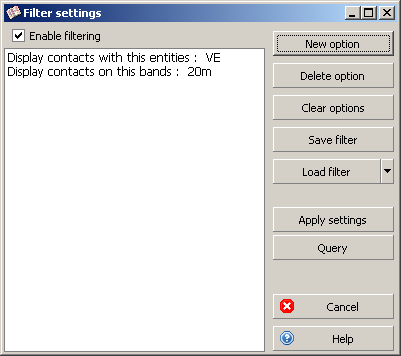
summed. According to the filter settings on this screenshot AALog
will display the contacts with the Canadian station and on 20 meters
band only. To apply filter in the main window
set 'Enable filtering' check mark and click 'Apply
settings'.
For string (text)
values wildcards '*' and '?' can be applied. The asterisk represents any
number of characters, question mark replaces only one character in this
position.
To set up a filter you
need:
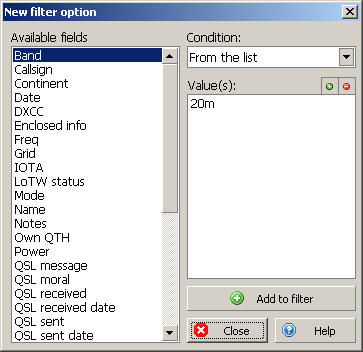
Press F9, mark 'Enable filtering', click New
option, [customize filter settings, press Add to filter],
close New filter option window, click Apply settings to
start filtering. Actions in brackets are executed as many times as many
parts of the filter must be combined into one filter.
Condition list according to the type of value:
| List of values | From the list - values included in the
list Out of the list - values NOT included in the list |
| String values | Equal - string is equal to Not equal - string is NOT equal to Start with - string starts with that Contain string - string contains this substring |
| Numeric and Date/Time values | Equal Not equal Great than Great or Equal Less than Less or Equal |
Hint: to enable/disable filter in the Main window use Ctrl+F9.
Hint: from the values specified in the list (when creating a filter) you can at once make a group or several groups of records by pressing Shift (for groups) and Ctrl (for multiple groups).
This help-file is written by Serge Rodnikov aka UA4FFF